30 March 2019

We use cookies. We use cookies. Accept/Decline. Hey! Stop that please!

While it's great that the GDPR regulations were created and the privacy of Users is now taken a wee bit more seriously, it gave rise to a poorly conceived idea of displaying notifications about cookies on websites.

Visit almost any website and you are shown a message that's meaningless to most Users. "We use cookies. Accept/Decline". For most Users, the reaction is "Uh...ok...what does this mean anyway?".


In the same way that popup's and ad's annoyed Users, now we have a perfectly legal regulation that created new popups that take up screen space.

Why should you be concerned?
Because some websites can access already-stored information to get to know more about you. According to Directive 2009/136/EC, Article 5(3):
"Member States shall ensure that the storing of information, or the gaining of access to information already stored, in the terminal equipment of a subscriber or user is only allowed on condition that the subscriber or user concerned has given his or her consent..." 

More explanations here.
There was a P3P protocol idea floated long ago, but it didn't come through.

From a User eXperience point of view, people are annoyed with the banner, and would prefer to have an alternative.
So today I made it a point to give a feedback to Firefox and Chrome to provide a notification icon similar to the green HTTPS icon on the addressbar. If the User is concerned about cookies, they can click the icon to clear the cookies or revoke the website's privileges, instead of having to always click on an accept/decline button that takes up screen space on every single visit.
This isn't really a decision for a browser team to take, but perhaps it would be possible for them to convince website owners to put up metadata on their website that allows the browser to know that it needs to display an icon on the addressbar. Or perhaps if the browser detects the notification popup, then instead of displaying the popup, it could substitute the popup with the notification icon on the addressbar.

25 March 2019

Which IDE to choose for Python?

If you have a computer with a minimum of 4GB (but recommended 8GB) RAM, go for PyCharm (but I didn't like the interface much, so I'd still recommend LiClipse).

For those who don't want to upgrade their RAM so soon, the next best option is either LiClipse or VS Code
LiClipse is a light-weight version of Eclipse that has PyDev pre-installed. So no hassles of a separate PyDev installation. I recommend LiClipse is because of refactoring and autocomplete, but it has the same bloated, unintuitive, annoying interface of Eclipse where you have to spend an eternity searching the IDE for commonly used functionalities. 
If you dislike Eclipse, try VS Code. One advantage of VS Code is that it does not force you to have only one entry-point for your code. You can open any file in a project and run it. I did find it slightly more annoying to use, compared to LiClipse. Moreover, on someone else's laptop, even though it had 32GB RAM, a 1TB SSD, an i7 Intel processor with 12 cores and an NVidia gaming graphics card, VS Code's IDE performed so slowly that I decided to switch back to LiClipse. Pressing Ctrl+Spacebar to auto-complete variable names would take more than 15 to 20 seconds. Renaming all instances of a local variable in a 50 line function would take more than half a minute. This was probably due to the project having many files, but the algorithms used in VS Code are massively sub-optimal.
 
Back to LiClipse. I'm not an Eclipse fan, and was rather amused and almost nodding my head in agreement when I read Jason Fruit's review which said "Full disclosure: the word "Eclipse" in a programming context (or a literary one, for that matter) fills me with dread; in my mind, Eclipse is a pig strapped to a dog strapped to a whale. I'm reluctant to install Eclipse because it's such a large application; some would say bloated".


Other IDE's
  • I first tried IDLE and didn't like it because it didn't have a good number of IDE capabilities.
  • Then tried Netbeans (which I have a good amount of respect for), but the Python plugin for Netbeans didn't support autocomplete and refactoring.
  • This made me switch to Spyder, which had a nice UI, dark theme and autocomplete features, but no refactoring. I was also surprised they needed to create an entirely separate Spyder3 IDE too.
  • WingIDE supports refactoring only in the paid version. 
  • There's Komodo IDE which might be good but I didn't look into because it has a paid version and I was quite sure many features would be disabled in the free version. 
  • Eric IDE already had some poor reviews, so didn't bother with it. I personally didn't like the look of the IDE either. 
  • Sublime Text was surprisingly un-intuitive. Given its popularity, I guess it's just me that is unfamiliar with the capabilities of the IDE.

Finally found out that LiClipse existed, and after the annoying run configuration settings, I'm actually liking it. Especially because of the refactoring support. LiClipse does still have bugs with its graphics and menu's, but it wasn't too annoying.


Putting LiClipse into the Ubuntu start menu:

In the terminal, run the command:
sudo -H gedit /usr/share/applications/LiClipse.desktop
Alternatively, if you don't want to give it sudo permissions, you can install it only for the local user by using:
gedit ~/.local/share/applications/LiClipse.desktop

In the file, paste the following:
[Desktop Entry]
Version=1.0
Name=LiClipse
Comment=Lightweight Eclipse
GenericName=IDE
Keywords=IDE, PyDev, Eclipse, LiClipse
Exec=/home/nav/liclipse/LiClipse %u
Terminal=false
X-MultipleArgs=false
Type=Application
Icon=/home/nav/liclipse/icon.xpm
Categories=GNOME;GTK;
StartupNotify=true

The desktop entry specification is here. Make sure you modify the file paths (shown in green) in the above code. The "%u" is so the desktop manager knows what to do if you open multiple selected objects at the same time or drop one or more objects on it. It's not really necessary.

That's it. Save and exit and you'll see LiClipse in the start menu.


16 March 2019

An impressive display of group projects at Ramaiah University of Applied Sciences

February 2019 saw a rather impressive display of technology and knowledge by the full-time students of the 2017 batch of Ramaiah University of Applied Sciences.
I went to the exhibition at the Dwaraka auditorium expecting to see some simple projects by the technical teams, but was surprised to see the dental, MBA, pharma students, product design students and many more batches presenting their projects.

Here are some of them:

Meant to be a flying machine
Pothole counter using ultrasonic and image sensors

Wind tunnel to check forces on bridge


Building work completion tracker
Water filter

Component sorter

Another component sorter
A low energy EV motor (as I remember)


A blood glucose checker using IR

Helping satellites communicate using laser
Device that uses touch, sound and visual inputs to help people communicate with the visually impaired and the hearing impaired

Cricket player performance predictor based on past data
Software tool to select the best model for a particular algorithm, using residual errors

Convolutional Neural Network to identify scenery and concoct a story based on it
Some capabilities of the techno center

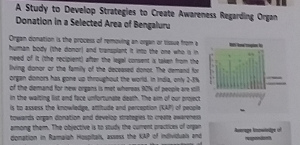
Study on organ donation awareness in Bangalore

IR robot to pick up difficult-to-locate dental tools fallen on floor


Assessment of impacted third molars

Restraining seat design for children
Good brushing habits teaching aid for visually impaired children

Study on leveraging e-commerce for farming

Skill India impact assessment

Study on effectiveness of water kiosks in Bangalore
 
Study on opportunities for the transgender population

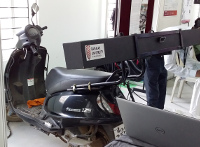
An electric vehicle

Crowd structure interaction on pedestrian bridge

Modern design for an old bike model

Foldable stall design
Mechanized coconut husk remover

Automatic vehicle classification for highway monitoring
Blade guard to safely load and unload surgical scalpel

Directly compressible excepients for drug delivery
Mandibular retractor and fracture reduction forceps

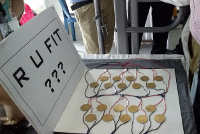
Piezoelectric transducers to generate electricity from treadmill
Semi-automatic plastering machine
IoT based headcount monitoring system for buildings
Single row paddy reaper

 What was surprising was that projects were interdisciplinary. The dental students were creating robots, the civil engineering students were doing image processing, electronics students were using machine learning to assess models. The blade-guard innovator even applied for a patent.


01 February 2019

Dark themes galore!

Almost all applications have bright white backgrounds. Sure, it looks nice, but depending on ambient light, it can hurt the eyes a wee bit.

Image from AskUbuntu

Enter dark themes:

Dark themes for Chrome.
Dark themes for Firefox.
For Netbeans.

And very likely for any other application you want. You just have to search for "Dark themes for xyz".

I'm even changing the background of my blog to be a shade darker than the bright white it currently is.

ps: Before installing third-party themes and add-on's, it helps to check if they are safe to install. Just in case any of them are used for spying on your data.

13 January 2019

Curated blog posts

We are in this world to help each other, and what better place than the Internet for sharing knowledge. This page contains a curated list of interesting blog posts I've written which you may find useful.

Technical
Fun Projects  
How I used analytics to analyze real problems

Volunteering (CSR) 
Conferences and science meetups 

Artificial Intelligence


General How-to's

Good health


Say thank you or donate

06 January 2019

Removing metadata from photos


When you take a photo with modern digital cameras or your smartphone camera, there is a lot of information (EXIF data) that the device embeds into the photo that can be viewed in the image properties. When you share the photo with other people, if you don't want them to see that data, you can remove it with certain tools.

An internet search for "How to remove exif data from photo" will lead you to a lot of tools.


  • GIMP users: Just open the image in GIMP, choose "Export as" and when exporting the file, uncheck the "Save EXIF data" option.
  • Ubuntu users: Simply open a terminal in the folder that contains the images you want to remove exif data from and type  mogrify -strip *.jpg to remove exif data from all jpg files. Else instead of "*.jpg", specify the particular filename.


Unable to copy files from computer/laptop to phone SD Card / internal memory


It can be puzzling when you encounter an error that simply says that a file can't be copied from your computer to your phone.

It could simply be one of the following issues:
1. The filename has special characters like a comma or colon which is not supported by your phone's operating system as a filename.
2. The filename may be too long, and long filenames may not be supported by the phone's operating system.

Simply change the filename to something that contains just alphanumeric characters and you'll be able to copy it. 

03 January 2019

How to reduce the brightness of your monitor to lesser than what the operating system allows


Yet another reason to love Linux.
Sometimes you really need the brightness of your monitor to be lower than it already is, and I've found the best solution is to use xrandr. It's installed by default in Ubuntu.

First, you need to know which device is connected to your display (even if you are using a laptop).
Type:

xrandr -q


You'll get an output that looks something like this:

Screen 0: minimum 8 x 8, current 1366 x 768, maximum 32767 x 32767
DP1 connected primary 1366x768+0+0 (normal left inverted right x axis y axis) 256mm x 144mm
   1366x768      60.06*+
   1360x768      59.80    59.96 
   1280x720      60.00 
   1024x768      60.00 
   1024x576      60.00 
   960x540       60.00 
   800x600       60.32    56.25 
   864x486       60.00 
   640x480       59.94 
   720x405       60.00 
   680x384       60.00 
   640x360       60.00 
HDMI1 disconnected (normal left inverted right x axis y axis)
VGA1 disconnected (normal left inverted right x axis y axis)


Look for the one that says "connected", and use that in the next command.
Type:


xrandr --output DP1 --brightness 0.5


And tadaah!!! The brightness goes to 50% lesser than what it was.
Enjoy!!!


Create aliases

Still better, create these two aliases in ~/.bash_aliases.

alias br='xrandr --output eDP1 --brightness 0.5'
alias brightness='xrandr --output eDP1 --brightness '

Now you can just type br or brightness 0.3 or brightness 0.6 etc. instead of typing the entire command.


Update: Oct 2019: Redshift can be manually controlled and can even alter gamma. So rather than use xrandr, use Redshift: https://nrecursions.blogspot.com/2018/03/alternative-to-flux-for-ubuntu-is.html 
 
Update 2022: At least from Ubuntu 22.04 and Windows 10 onward, there's no need of installing redshift or similar apps, since the OS comes pre-installed with a NightLight app. Even Android has it.
 

30 December 2018

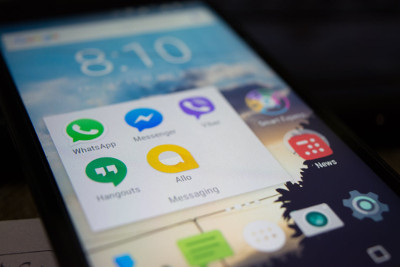
The silo-world of messaging apps


Messaging apps are convenient. Everybody agrees to that. It's easy to access notifications, easy to share files and it does not have the "formality" baggage that email comes with.

Yet, messaging apps have a fundamental flaw that services like email and SMS do not have: Universality.

With email and SMS, you can send messages between any service provider. However, you can't send messages between WhatsApp and Hangouts or WeChat or Telegram. A simple process of following a protocol like XMPP or creating a global standard that all messaging apps should have followed.

So now we are stuck in a world where we compulsorily have to install whatever app a group of people uses, even if we don't want to.

Indifference
 
Oddly, even though the objective of messaging apps is to bring people together, that does not necessarily happen.
One of my classmates got in touch with few other classmates after sixteen years, via phone and email. He took initiative to get in touch with more classmates, and with two months of effort, he put many other classmates in touch with each other. Everyone was happy about the reunion. They asked him to create a group on a messaging app and he told them he doesn't use that app. So they created the group themselves and all of them joined the group, leaving him out. They just didn't care if he wasn't part of the group. To them, it was his fault that he doesn't use the app. Needless to say, when I saw this cold response from everyone, I refused to join the group too.


What you can do

  • Tech identification: First, learn the science of identifying an appropriate communication medium. You can't use a messaging app to form a group of a diverse set of people, since many of them may not use apps. Use a more common medium like email. It's not convenience that matters here. It's uniform communication and participation.
  • Talk to people: Ask everyone what they are comfortable with. If somebody is not very tech-savvy or does not use the tech y'all chose, either check if everyone else is ok with using the tech this person proposes or offer to keep the person informed always. It's your responsibility to keep the group united.
  • Know the nature of communication: When there is an urgent piece of info to communicate, the ONLY reliable way to do it is to have a phone call. That's the only way you know the person has received the message. If you use email, SMS or a messaging app, don't assume that the other person has seen the message unless they respond with an "ok". Often, the response or read-receipt could be a result of somebody else looking at the message too. Do the phone call instead.

Hoping for an RFC that would be accepted universally. Messaging apps need the ability to talk to each other.